Official Manual / Quick Start
Import a Shadowrocket subscription and configure rules
Work through the steps in order: add a server or subscription, choose a mode, connect, verify, and troubleshoot. For your first setup, establish a connection you can verify before adjusting routing rules. You don't need to change everything at once.
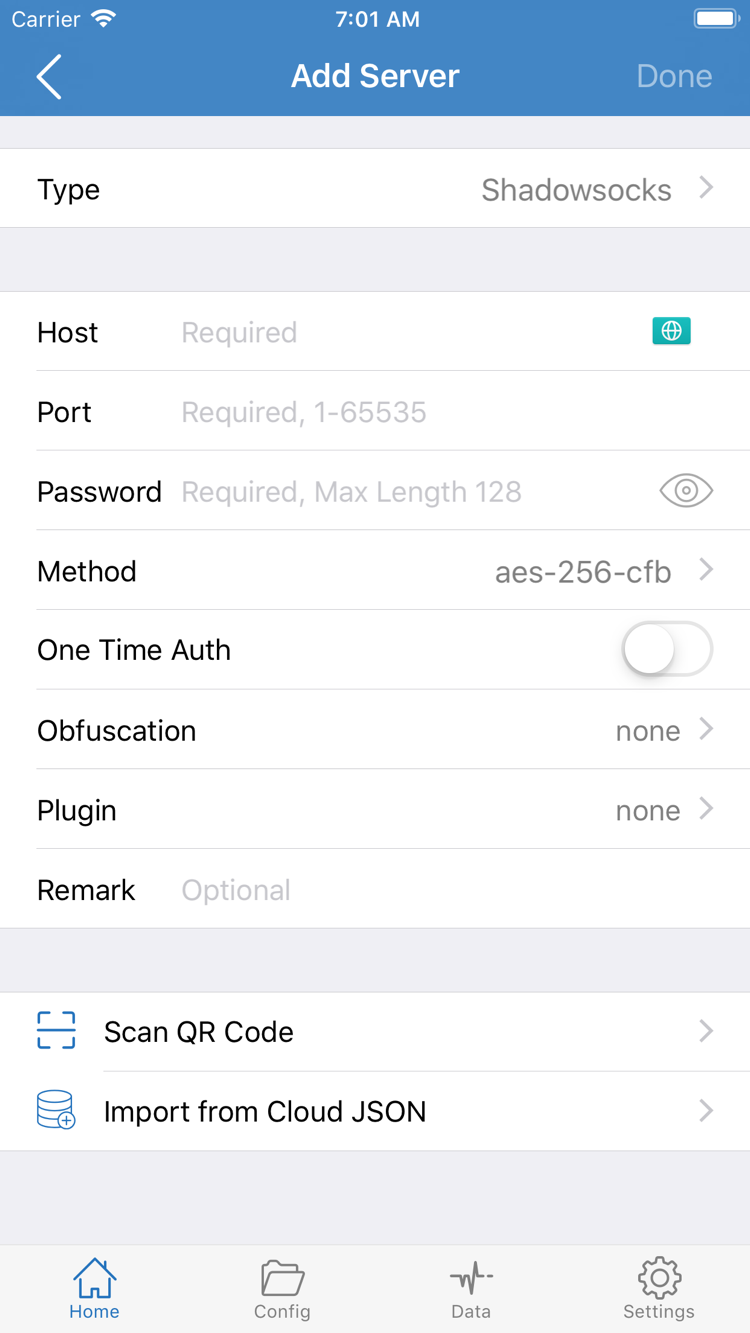
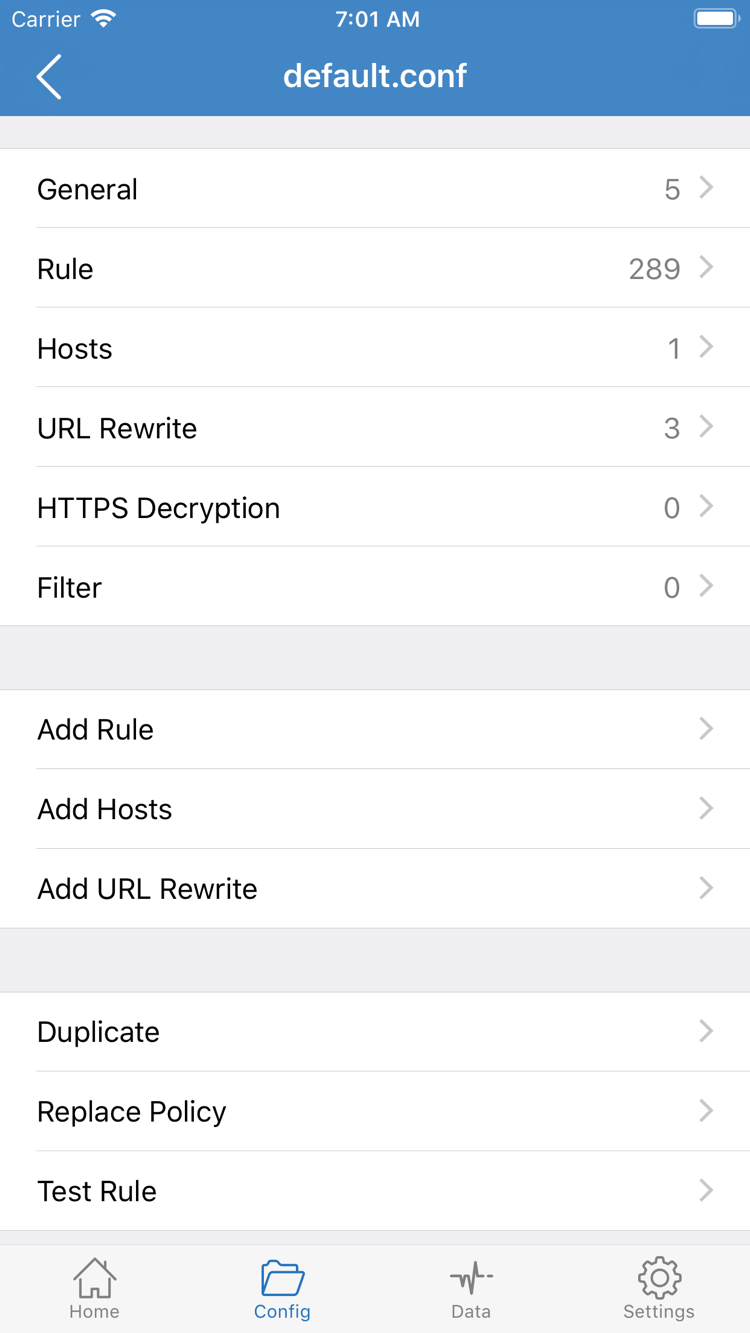
These screenshots are from the official App Store listing and are provided to help identify interface labels. The fields shown may vary by Type, device, and app interface; follow what appears in your current app. Don't copy connection details from a screenshot.
STEP 01 / IMPORT
Add Server: Add a Server or Import a Subscription
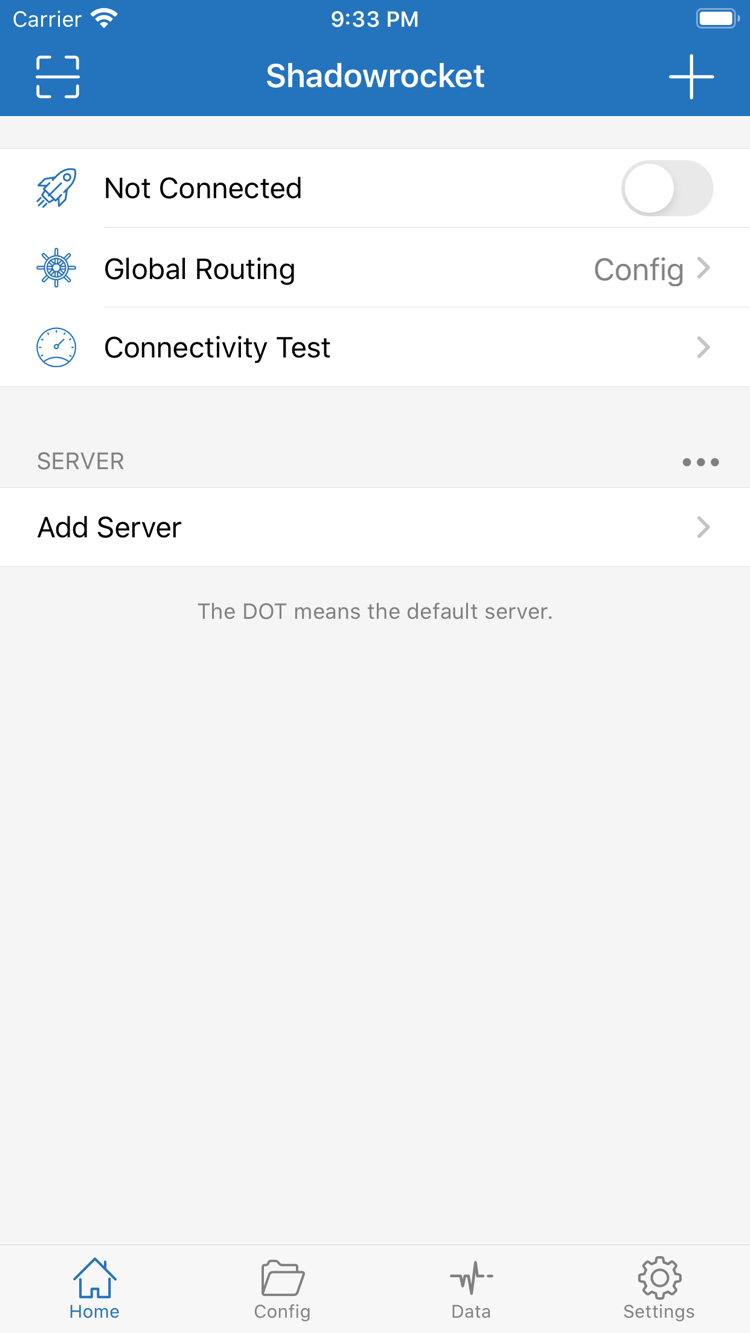
First, identify whether you have a subscription link or the details for a single server. A subscription link retrieves and updates a list of server entries; manual setup requires entering details field by field. These are different types of input. Don't paste a full subscription URL into a server's Host field. Open Shadowrocket, go to Home, and find Add Server in the SERVER section, or use the add button on the page to open the editor.
Have a Subscription Link? Choose Subscribe
In Add Server, tap Type and choose Subscribe. Enter your full subscription link in the address field for that type. You can add a name to identify it, but don't put account passwords in the name. Make sure the pasted link is complete from beginning to end, with no chat text, spaces, or line breaks. Save, return to Home, and wait for the import to finish.
After a successful import, the SERVER list should show the server entries or group provided by the subscription. Check that the expected names appear. Seeing only the subscription name without any server entries doesn't mean you're ready to connect. If the app can't retrieve the subscription, first check that the URL is still valid and your current network can reach it, then confirm that its contents are compatible with Shadowrocket. Don't add the same subscription repeatedly; duplicate entries make it harder to identify the right one later.
Have Server Details? Enter the Fields for the Selected Type
To add a server manually, choose a Type that matches your server details, then enter the Host, Port, and required authentication fields. Whether fields such as Password and Method appear depends on the selected type. Don't change the protocol just to make the editor look like a screenshot. The Host is usually a server domain name or IP address; don't add a web path. The port must also match the server configuration.
If you have a QR code for importing, use Scan QR Code on the Add Server page, then check the fields after scanning. Import from Cloud JSON is a separate import option; use it only if you already have content intended for that option. It is not the same as Subscribe. Importing saves manual entry, but doesn't confirm that the remote server is currently available.
After saving, return to SERVER, tap the entry you want to test, and make sure the selection indicator is on the right one. If entries have the same name, check their groups and server details before continuing. Subscription links may contain access credentials; don't share a full URL or QR code when troubleshooting. For more on the difference between subscriptions and configuration files, see the user manual.
STEP 02 / ROUTING
Global Routing: Choose Config, Proxy, or Direct
Having a server doesn't determine where every request goes. Return to Home and tap Global Routing to check the current mode. The three common options are Config, Proxy, and Direct. They determine how requests are routed, while the selected entry in the server list determines which connection is used when a proxy is needed. Check these separately.
Config: Route Requests Using the Current Configuration
With Config selected, requests are handled according to the rules and policies in the current configuration. Before using it, open Config and make sure the configuration file you want is selected—not just imported into the list. The official screenshot shows the configuration editor, with sections such as General, Rule, and Hosts. You don't need to edit each section to get started, and ordinary connections don't require HTTPS Decryption.
A subscription usually provides a server list, while a configuration file contains settings such as rules. So a successful subscription import doesn't mean that routing rules have been applied. When reviewing rules in Rule, check the match conditions, order, and target policy. The example below illustrates rule evaluation order; it isn't a complete configuration to paste. Policy names in your actual configuration must exist.
DOMAIN-SUFFIX,example.com,PROXY
GEOIP,CN,DIRECT
FINAL,PROXY
The example checks the domain suffix first, then the GEOIP condition. If neither matches, the request falls through to FINAL. example.com is included only to explain the syntax; it isn't a server address or connection detail. If you're not sure how to read the rules yet, leave the existing configuration unchanged and compare using the modes below. Don't add or remove several rules during your first test.
Proxy and Direct: Compare Routing Explicitly
Proxy routes typical requests through a proxy and can help determine whether a problem is caused by rule-based routing. It doesn't guarantee speed; behavior also depends on related settings and network conditions. Direct uses your local network rather than the selected remote proxy server, making it useful for checking whether the basic network connection works. If a destination opens in Direct mode, that doesn't prove the proxy server is working.
For an initial check, select Proxy and see whether the selected server can reach the destination, then switch back to Config to check your usual routing. After each change, return to Home and confirm the value shown for Global Routing. Restore the mode you need when testing is complete. For more on rule order and policy references, see the user manual. This page focuses on establishing one connection.
STEP 03 / CONNECT
Home: Turn On the Connection and Approve the System Request
Check the server and mode before turning on the switch at the top. Return to Home, confirm the selected entry in SERVER, then check Global Routing. Not Connected at the top means the app isn't connected; it doesn't necessarily mean the server details are wrong. Adding connection details and starting a connection are separate steps.
Turn on the connection switch at the top. The first time you start a connection, the system may ask permission to add a VPN configuration. Read the system prompt and allow the request only after confirming it was triggered by your action. If the system asks you to authenticate on your device, follow its instructions. This permission lets Shadowrocket handle the relevant network traffic at the system level; it doesn't fill in server details or confirm that remote authentication succeeded.
After granting permission, return to the app and check whether the switch and connection status stay on. If you previously denied permission, follow the app and system prompts when you try again; don't delete all your subscriptions just to retry. If your device is managed by an organization or access is restricted, check the device management requirements. Repeatedly switching modes won't resolve those restrictions.
Once the connection switch stays on, avoid changing other settings for now and move on to verification. A system connection indicator only shows that the relevant network configuration is running; it doesn't prove that every site is using the expected route. If the switch turns off, authorization isn't completed, or an error appears, note the exact message and what action preceded it, then use Step 5 to check the relevant category.
For an easy-to-interpret first test, keep the same local network connection. Don't switch between Wi-Fi and cellular while turning on the connection. Also avoid changing the server, mode, and configuration file at the same time. If the test succeeds, you'll know which settings worked. Then restore your usual Config mode and run the verification again.
STEP 04 / VERIFY
Connectivity Test: Check the Test Result and Actual Access
A useful verification checks the test result, actual access, and current mode together. Start with Connectivity Test on Home and see whether the server you're testing returns a result. The value reflects one test using the current test method; it isn't a download speed and doesn't guarantee access to every destination. If the test times out, consider the test method and actual connection together. Don't change all your settings based on one value.
Next, open a browser or the target app and visit a page you expect the current configuration to handle. Wait for it to load fully. Use a new page or refresh the request to avoid relying on cached content. Note the selected server, Global Routing mode, network, and what happened: did the page fail to load, only some content fail, or did it open but feel slow? These differences help identify whether to check rules, the server, or your local network.
Return to Shadowrocket and check available traffic or activity in Data. A change in the data can help confirm that the app is handling requests, but an increase in total traffic doesn't mean a particular destination matched a specific policy. If the current interface provides request details, check the destination, rule, and policy together. Don't rely only on the status bar indicator or the result shown for a single external address.
If access works in Proxy but fails for the same destination in Config, first check the current configuration file, rule order, target policy, and related DNS settings rather than rebuilding the server. If both modes fail, leave the server details unchanged, turn off the connection to check your local network, then compare using another server entry you already have.
If the issue is slow performance, distinguish a slow initial load from slow ongoing transfers and occasional interruptions. Don't classify them all as latency. For checks organized by symptoms, see Troubleshooting. The next section covers common issues during initial setup.
STEP 05 / CHECK
Settings: Check the Step That Failed; Change One Thing at a Time
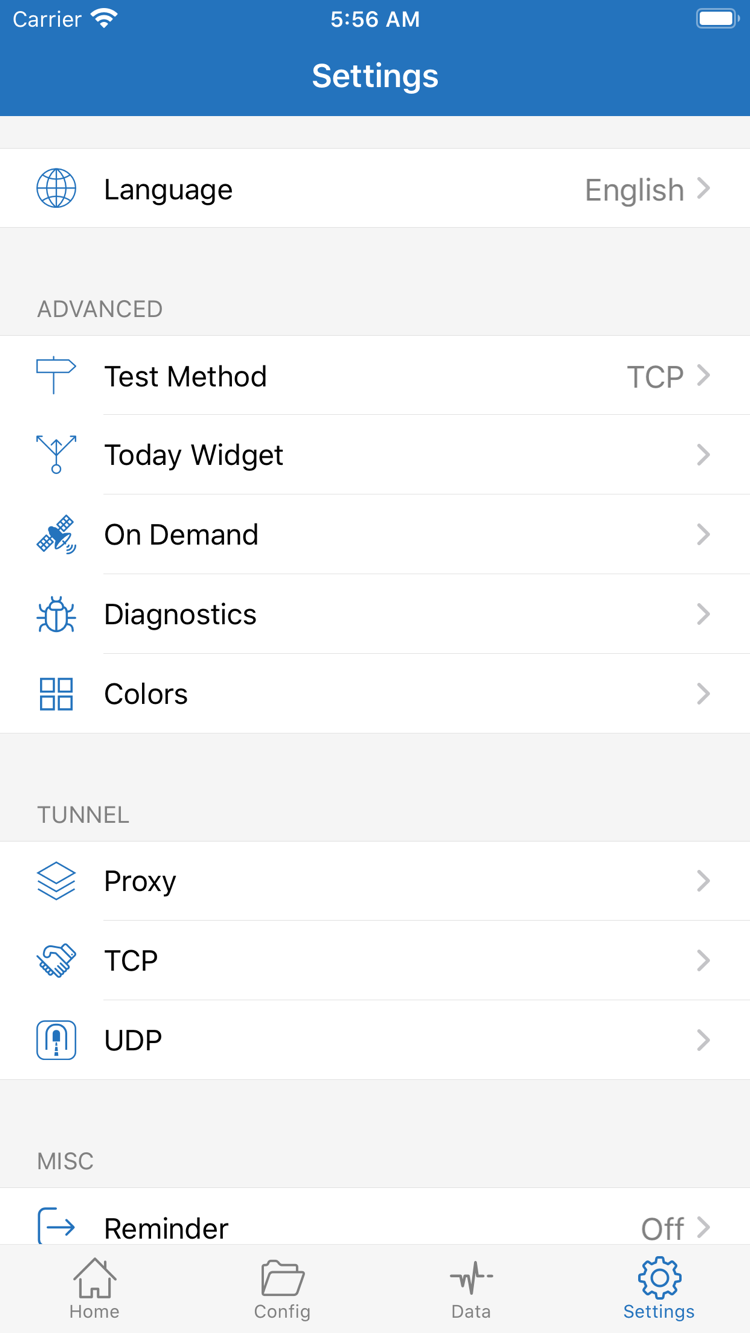
Identify where the process failed before changing a setting. The options in Settings aren't a checklist of changes required to connect for the first time. Test Method, On Demand, and Diagnostics have different purposes; changing one switch isn't a substitute for troubleshooting. Before you start, note the server, mode, and exact error message, and keep a record you can use to restore the previous setup.
Subscription Has No Entries: Check the Import Step
If the expected entries aren't in SERVER, return to the subscription and check that the URL is complete and still valid. Make sure your current local network can retrieve it, then confirm that the returned content is compatible. Even if it worked before, access permissions or the contents of the link may have changed; check with the provider of your existing service. Missing server entries aren't a Global Routing selection problem.
Entries Are Listed but Won't Connect: Check Details and Authorization
Open the selected entry for editing and check Type, Host, Port, and authentication details one by one. Look for spaces added during copying, missing characters, or transport options that don't match the server requirements. Change only fields you've confirmed are incorrect, save, select the entry again, and test. If the switch at the top won't stay on, check system authorization and app prompts before adjusting rules.
Test Times Out or Results Differ: Check Test Method
In Settings, check Test Method to see how the current result was produced, then compare your existing servers using the same method. If some tests fail but actual access works, first consider the test conditions rather than treating the test value as a verdict on the entire connection. If actual access also fails, keep the app settings unchanged and test Wi-Fi and cellular separately, changing only one condition at a time.
Connection Changes Automatically: Check On Demand
If the connection starts again after you turn it off manually, or its status changes when the network switches, check whether On Demand and its conditions are enabled. This feature manages connections based on conditions; it won't fix an incorrect server password or an expired subscription. To establish a clear baseline for manual testing, note the current conditions and temporarily turn off the related automatic behavior. Restore it afterward as needed.
Only Some Destinations Fail: Check Rules in Config
If most destinations work but a specific one fails, compare the results in Proxy and Config first, then check which configuration file is active. Don't change all DNS and transport settings just to test one destination, and don't enable HTTPS Decryption without a specific need. For more detail, check the diagnostic tools available in Diagnostics. Before sharing any records, hide subscription URLs, passwords, authentication fields, and personal request details.
If you still can't identify the issue, note where the failure occurs, the exact error message, mode, network conditions, and one comparison test you've already tried. There's no need to share your full configuration. Follow the symptoms in Troubleshooting; for in-depth guidance on Config, Data, and routine maintenance, see the complete user manual. Once the connection works, return to your usual mode and repeat Step 4 to establish a troubleshooting routine you can reuse.